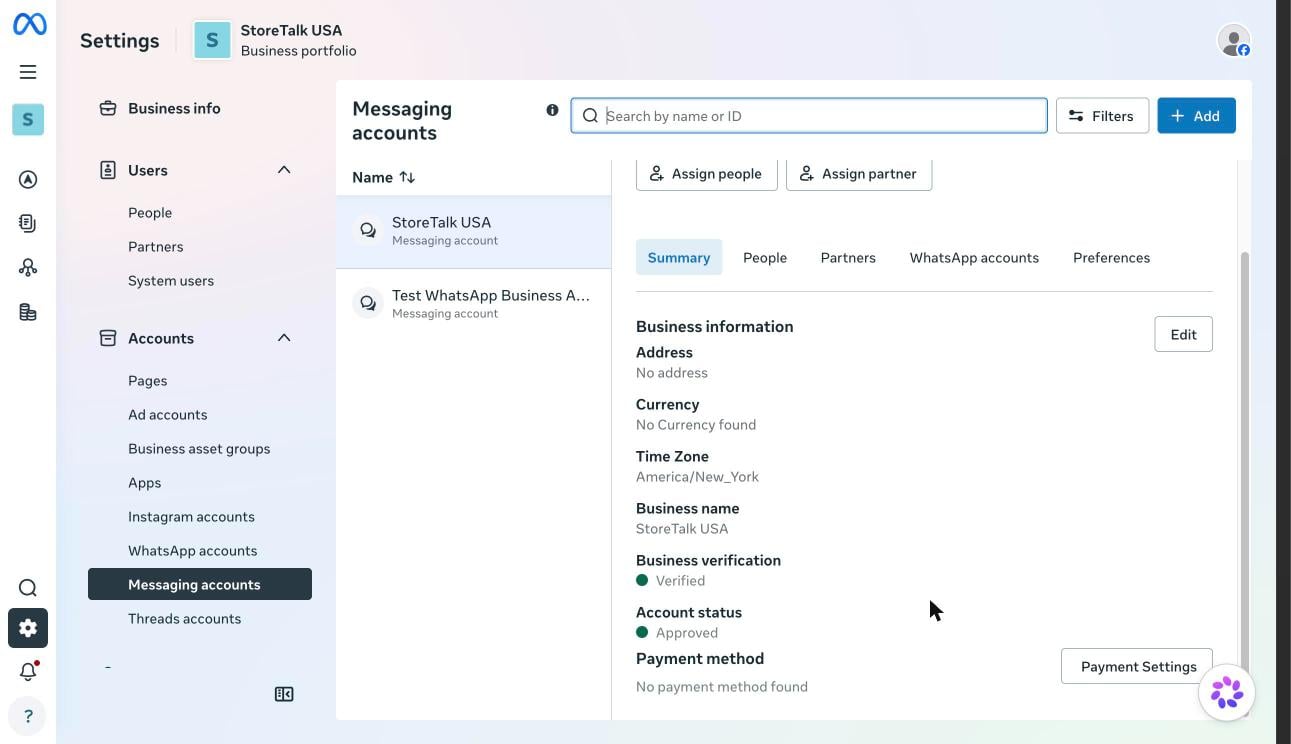
Meta has changed how WhatsApp accounts are organised. What used to be one WhatsApp Business Account (WABA) is now split into two:
- a WhatsApp account, which owns your phone number, display name, quality rating and messaging limits
- a Messaging account, which owns your templates, payment method and webhooks
What you’ll need
You must be an admin of the business portfolio and the Meta app.
1. Create a System User and a permanent token
A System User token doesn’t expire, unlike the temporary token on the API Setup page (which lasts 24 hours).1
Open System users
Go to Meta Business Suite → Settings → Users → System users, and click Add. Give it a name (for example, StoreTalk) and the Admin role.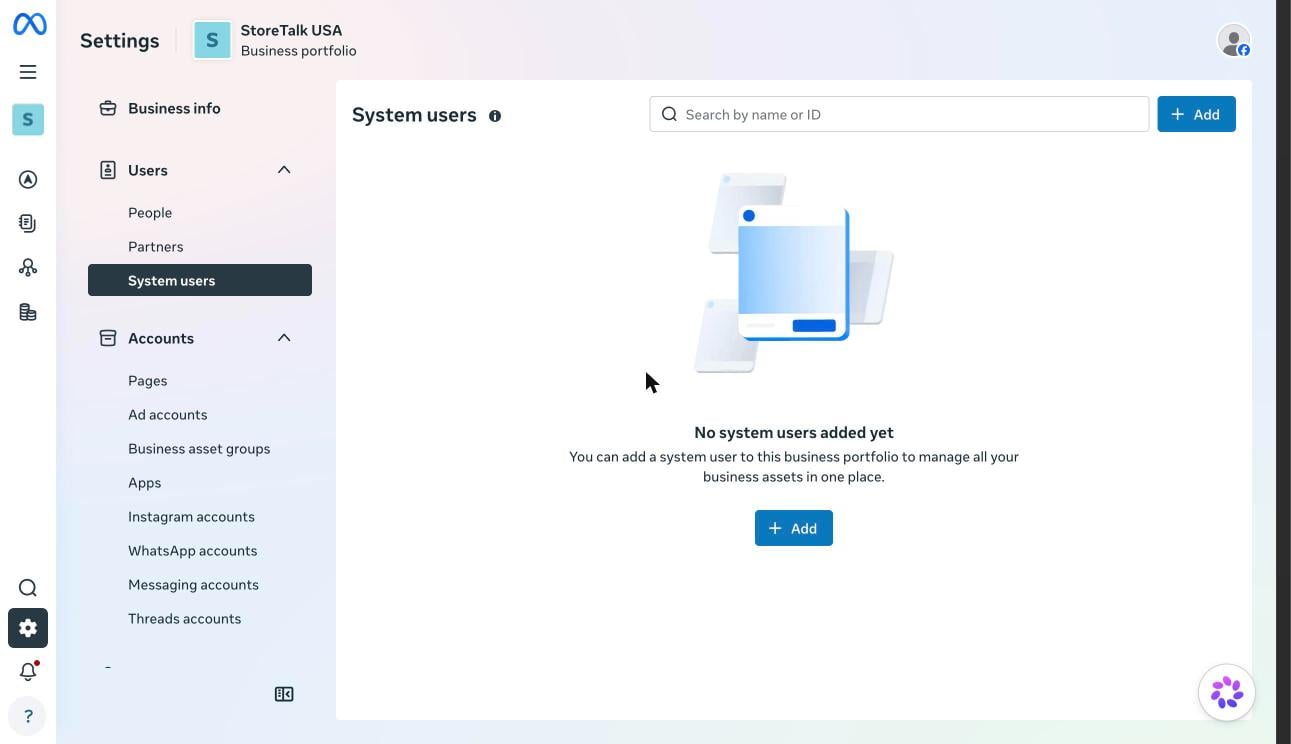
2
Assign assets
Select the System User and click Assign assets. Give it full control of:
- your app (under Apps)
- your WhatsApp account (under WhatsApp accounts)
3
Generate the token
Click Generate token, choose your app, set Token expiration to Never, and tick these permissions:
business_managementwhatsapp_business_managementwhatsapp_business_messaging
2. Copy your Phone Number ID and WABA ID
1
Open API Setup
Go to Meta for Developers → your app → Use cases → Connect on WhatsApp → Customize → API Setup.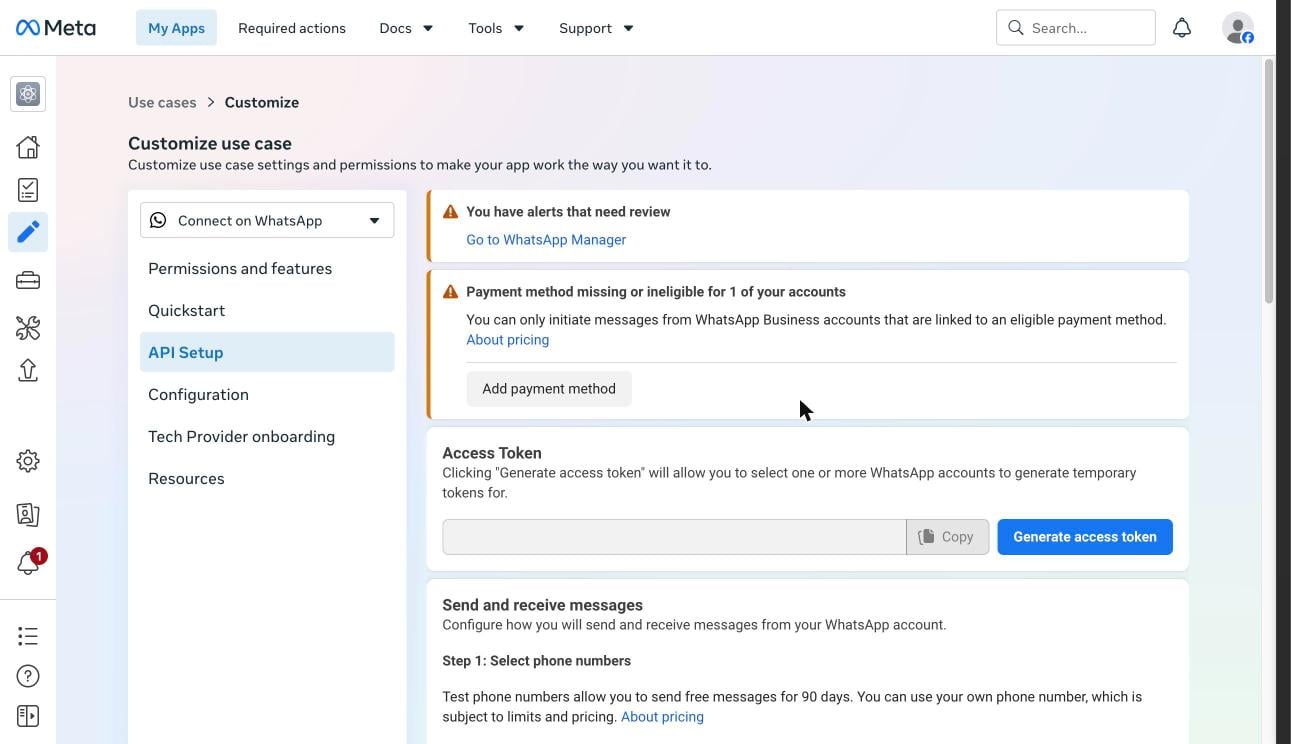
Older apps may still show WhatsApp → API Setup directly in the left menu. The page is the same.
2
Pick your number and copy the IDs
Under Send and receive messages → Step 1, choose your business number in the From dropdown. Copy: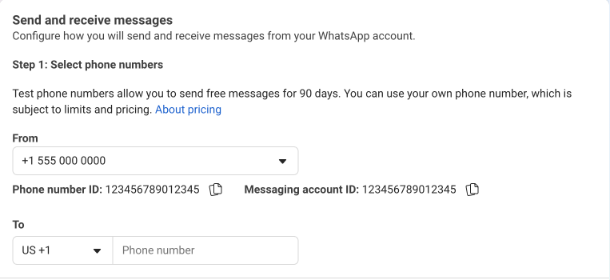
- Phone number ID
- Messaging account ID (this is your WABA ID)
3. Copy your App secret
Go to your app → App settings → Basic, click Show next to App secret, and copy it. StoreTalk uses it to verify that incoming webhooks really come from Meta. While you’re here, fill in Privacy policy URL. Meta won’t let you publish the app without it (step 6).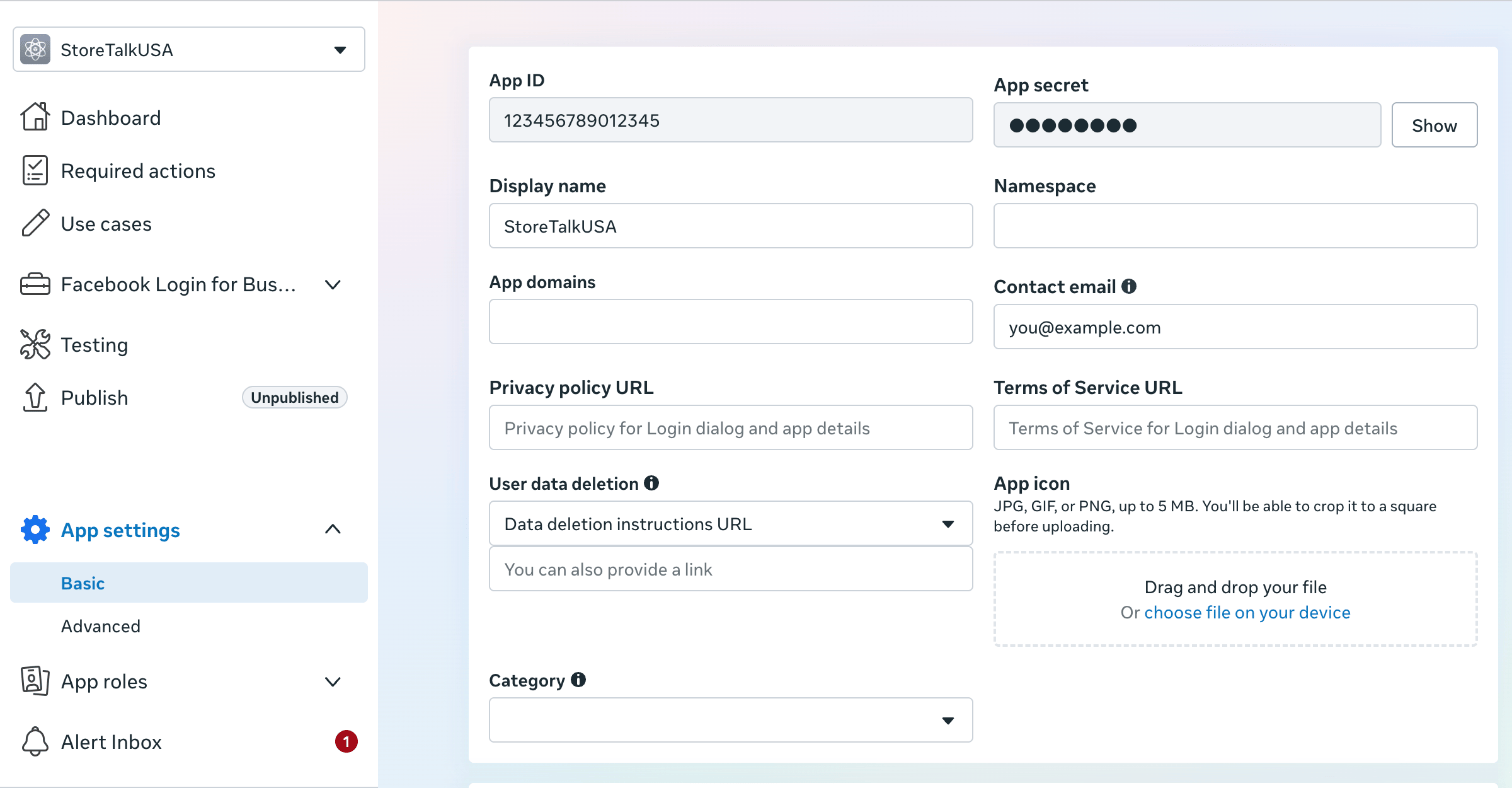
4. Save the details in StoreTalk
In StoreTalk, go to Settings → WhatsApp, choose Self-managed, and enter:- Phone Number ID
- WhatsApp Business Account ID (WABA ID): the Messaging account ID
- System User Access Token
- Meta App Secret
5. Point the webhook at StoreTalk
Back in your app, go to Customize → Configuration and enter:
Click Verify and save. Then, under Webhook fields, click Subscribe next to messages.
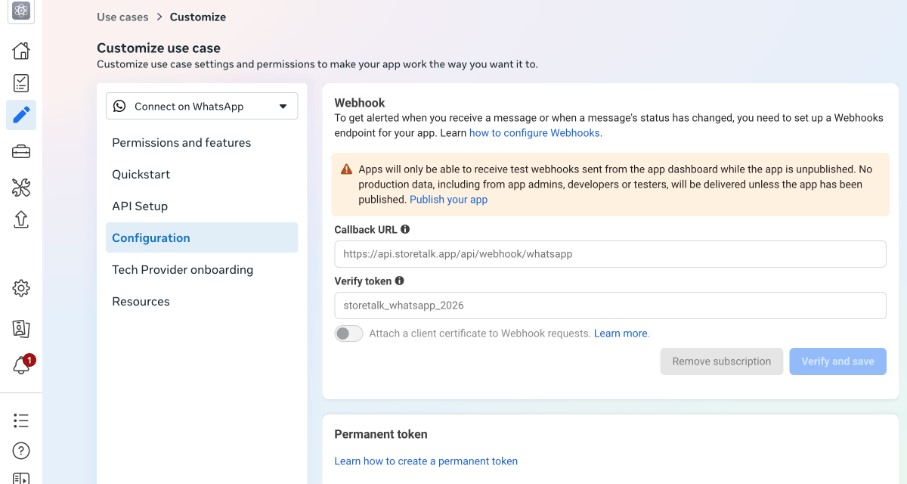
6. Publish your app
Go to your app → Publish (left menu) and click Publish. The Publish button stays greyed out until a Privacy policy URL is set in App settings → Basic.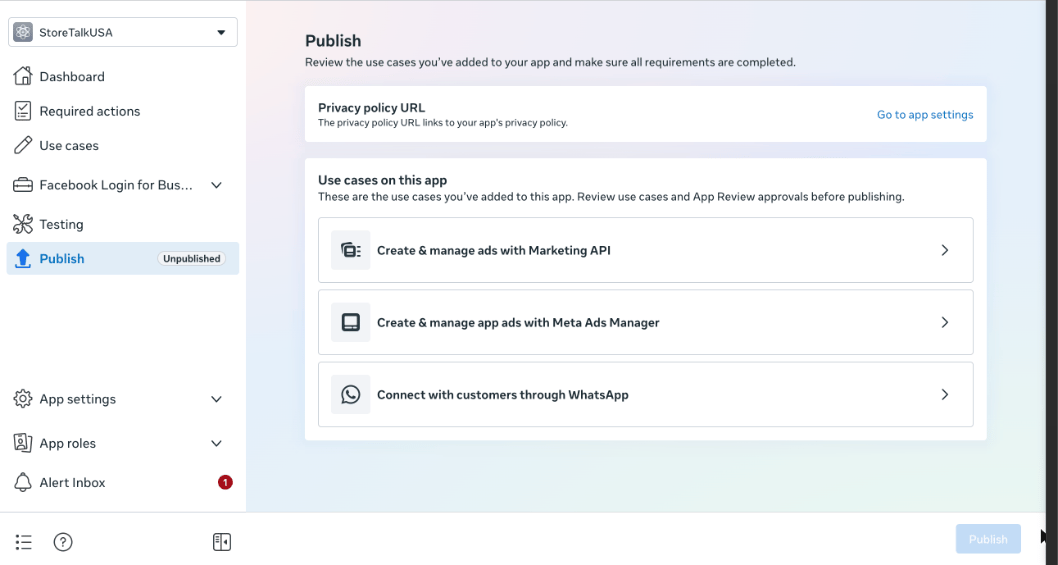
7. Add a payment method
Meta Business Suite → Settings → Accounts → Messaging accounts → select your account → Payment Settings. Without a payment method you can only reply to customers who message you first. You can’t start conversations or send template messages, including campaigns.